Storiis Support
Plan
Updated
The Plan is the heart of Storiis. It is where your story stops being a collection of promising ideas and begins becoming a deliberate sequence of events.
This is not because every story must be engineered within an inch of its life. The Plan can be as light or as detailed as your process requires. Its value comes from making relationships visible: which storylines a scene advances, which characters are present, when the scene happens, what information it reveals and what changes because the scene exists.
The Plan contains four working views—Scenes, Timeline, Cards and Summary—selected from the control above the workspace. You can switch between these views by hitting cmd-shift-[ or cmd-shift-].
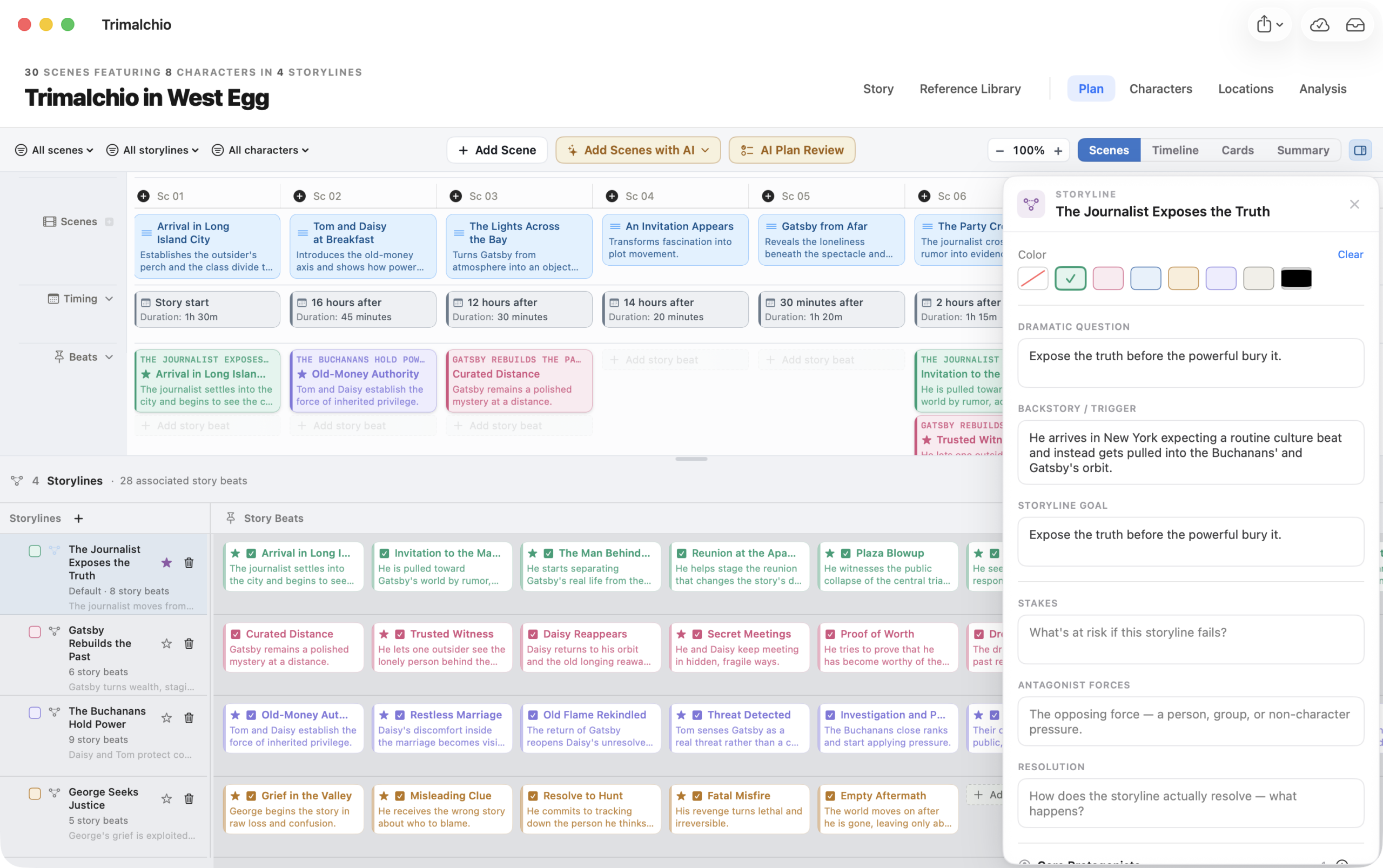
Scenes
Scenes is the primary construction view. Each scene is a column, arranged in the order the audience encounters it. Rows show the scene’s connected information, including story beats, cast, locations, exposition and timing.
Use Scenes to:
- Add, edit, delete and reorder scenes
- Organize scenes into acts and sequences or chapters
- Connect story beats, characters, locations and exposition
- Define narrative function, core events, conflict, turning points and other scene craft
- Set timing and duration
- Inspect connected items without leaving the Plan
The resizable Storylines panel below the scene rows is where you create and maintain storylines and story beats.
You can rearrange scenes by dragging and dropping them directly. You can drag and drop beats, characters, locations and exposition items to and from scenes. You can also drag Storyline Beats from the Storylines panel to a scene. Once a Storyline beat is used in a scene, its color in the Storylines panel changes to indicate so.
Timeline
Timeline translates scene timing into a visual chronology. It answers when events happen in the story world, regardless of where those scenes appear in narrative order.
Use it to find accidental overlaps, implausible gaps, flashback patterns and pacing problems. You can also add non-scene story-world events for temporal context.
Cards
Cards presents the same Plan as large visual scene cards grouped by act and sequence or chapter. The cards surface important scene information at a glance and include a compact timing strip.
Use Cards when you want a more visual overview or prefer to think in chunks rather than rows.
Summary
Summary turns the current scene set into a reading experience. Scene Flow uses your existing descriptions and Plan data; AI Summary asks Storiis AI to produce a prose recap grouped by structure.
Use Summary when you need to stop manipulating boxes and read what the story actually appears to be doing.
Filters
The Plan toolbar can filter scenes, storylines and characters. Filters affect the views and summaries built from the visible scene set.
If scenes seem to have vanished, check the filters before concluding that the app—or an unusually ambitious antagonist—has deleted them.
Coloring Scenes and Columns
Use Scenes → Tint Scene Columns to make patterns easier to scan in the Scenes, Timeline and Cards views. You can leave the connected rows in their normal colors or color scene items by scene, storyline, sequence, act or AI-scored tension.
Tension coloring runs from blue for calmer scenes through cyan, green, yellow and orange to red for peak tension. It can use the fixed 0–10 tension scale or stretch the story’s own lowest and highest scores across the full color range. See Coloring Scene Columns for the complete behavior and guidance on choosing a tension scale.
Acts and Sequences or Chapters
Acts provide the highest level of structural grouping. Within them, scenes can be grouped into sequences or chapters.
Open the Scenes menu to:
- Manage acts
- Manage sequences or chapters
- Change Group Scenes by between Sequences and Chapters
- Show or hide structural tracks
Changing the term updates relevant labels in the Plan and exports. It does not change the underlying scene content.
The Inspector
Select a scene, story beat, character, location, exposition item, act, sequence or storyline to inspect it. The inspector provides focused editing without covering the whole Plan.
By default, selecting an item opens the inspector. Turn off Scenes → Open Inspector on Selection if you prefer to open it manually. Use Command–I to show or hide it.
AI Systems
Add Scene with AI
Starts the Scene Wizard with AI assistance for one scene. The assistant uses the current story, characters, locations, storylines and surrounding scenes as context.
Brainstorm All Scenes
Creates a guided proposal for a larger set of scene cards. You choose the story scope and other constraints, review the estimated cost and inspect the generated result before applying it.
AI Plan Review
Reads the current Plan and its analysis findings, then discusses structural issues and proposed changes. Plan Review can prepare concrete revisions, but you decide what to apply. Accepted changes are grouped so they can be undone.
For a complete example, see Example AI-Assisted Workflow.
When Is a Plan “Finished”?
A Plan is ready when it gives you enough confidence to write—and enough visibility to notice when the draft begins taking you somewhere better.
That may mean every scene is richly described with timing, exposition and character states. It may mean thirty scene titles and one excellent dramatic question. The Plan serves the story; the story does not owe the Plan a perfect completion percentage.
Explore this feature