Storiis Support
Timeline
Updated
The Timeline lays out scenes according to when they happen inside the story world. It uses each scene’s timing and duration rather than its position in the narrative.
That distinction matters. Timing is information stored on a scene; Timeline is the visual view that combines that information across the story.
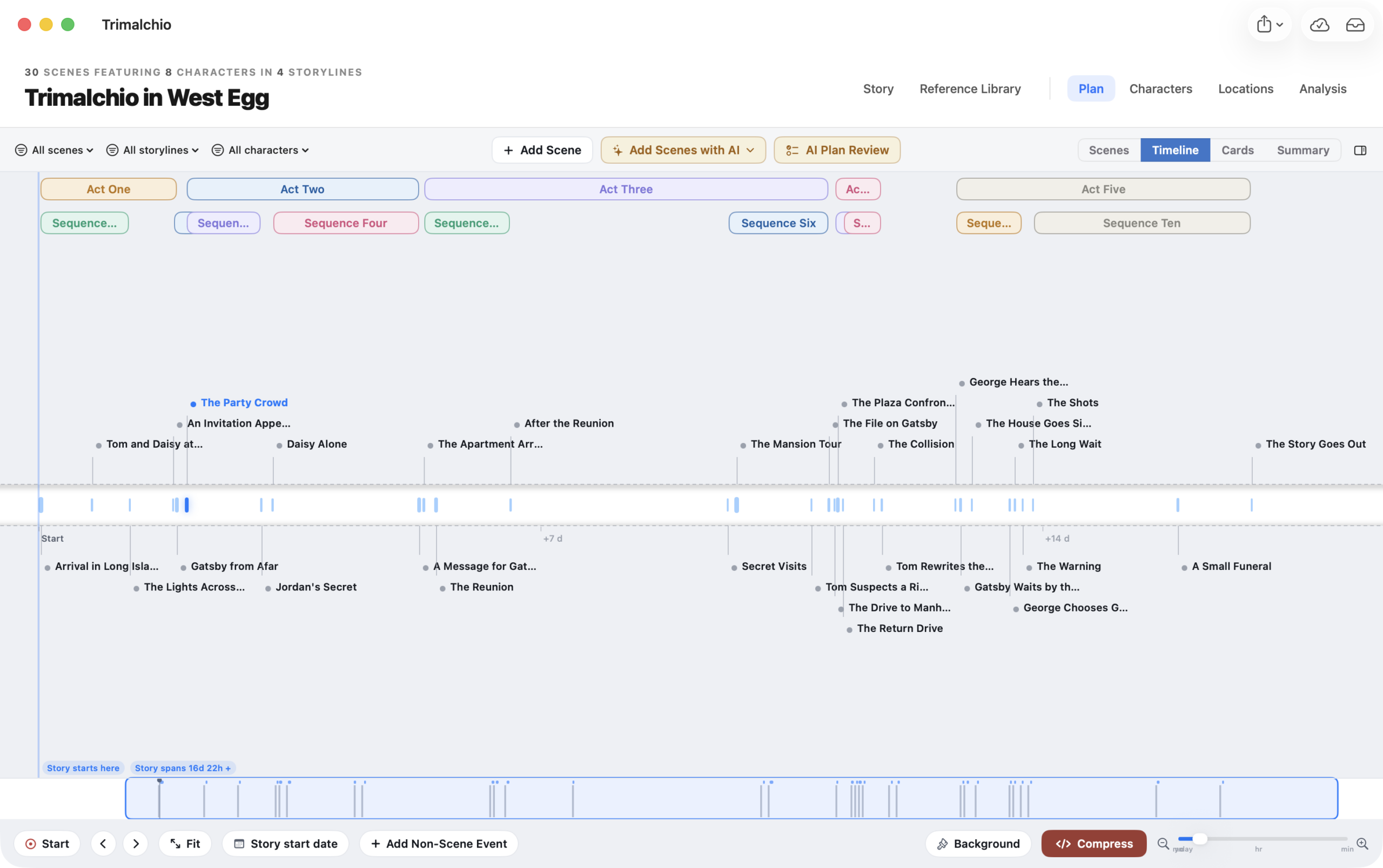
Narrative Order and Story-World Order
The Scenes view answers, “What does the audience experience next?” The Timeline answers, “What actually happens next?”
In a strictly chronological story, the two may look similar. In a story with flashbacks, intersecting viewpoints or events separated by long gaps, the Timeline reveals relationships that narrative order can conceal.
Setting Scene Timing
The scene that begins the story’s chronology is timed from the Start of Story. Later scenes can begin before, after or at the same time as another scene, with a specific interval between them.
Set timing in the Scene Wizard, the scene inspector or the scene’s Timeline menu. Set a duration when the length of the event matters.
If a scene is missing from the Timeline or appears somewhere unexpected, inspect its timing first.
Adding Non-Scene Events
Double-click an open area of the Timeline to add a story-world event that is not a scene. These events are useful for births, historical disasters, political changes, travel departures or anything else that affects chronology without appearing directly in the narrative.
Non-scene events provide context; they do not become scene cards in the rest of the Plan.
Navigating the Timeline
Use the controls along the Timeline to:
- Zoom in or out
- Return to the Start of Story
- Move to the previous or next item
- Fit the chronology into the available space
Acts and sequences or chapters can tint the background, making structural boundaries visible against story-world time.
Scene items can also be colored through Scenes → Tint Scene Columns. Choose scene, storyline, sequence, act or tension coloring to carry the same visual key between Timeline, Scenes and Cards. Tension coloring offers fixed 0–10 and story-relative scales; see The Two Tension Scales for how to read them.
Long Gaps and Compressed Time
The Timeline can compress very long empty intervals so that a story spanning months, years or generations remains usable on screen. A compressed gap represents omitted visual distance, not missing time.
Zoom or move through the chronology when you need to inspect the exact relationship around a gap.
Setting a Real Start Date
The Start of Story can be given a real date. Relative scene timing is then displayed against that anchor, which is useful for stories that depend on calendars, seasons, travel time or historical events.
You can still use relative timing without choosing a real date.
Editing from the Timeline
Open a Timeline item’s menu to edit scene timing, open the scene details or delete the selected item where available. Changes to timing are reflected anywhere that timing appears.
Do not use Timeline position as a substitute for changing narrative order. To move a scene earlier or later in the telling, reorder it in Scenes.
What to Look For
Use the Timeline to ask:
- Do travel and recovery periods make sense?
- Are simultaneous events truly simultaneous?
- Does a character know something before they could have learned it?
- Are flashbacks clustered so densely that the present-day story disappears?
- Are long gaps intentional, or are they hiding an unfinished connection?
The Timeline does not decide whether nonlinear storytelling is too complicated. It does, however, remove its fake moustache and make it easier to recognize.