Storiis Support
Cloud AI Access
Updated
Cloud AI Access lets an outside AI tool—such as Claude, ChatGPT or another MCP-compatible client—read the story plans you choose to share from Storiis.
The important words there are read and choose. The connection does not expose every document on your Mac, and the outside AI cannot quietly rewrite your Plan behind your back. You decide which stories are uploaded, and the AI receives read-only tools for exploring their characters, locations, scenes, outline, timelines, worldbuilding and other connected material.
Why Use It?
A general AI conversation knows only what you paste into it. Cloud AI Access gives the AI structured access to the full plan, allowing you to ask questions such as:
- “What is Mara’s arc across the second act?”
- “Which established facts affect the warehouse scene?”
- “Draft the next scene in the narrative voice defined in my Story settings.”
- “Where have I already foreshadowed the reveal about the lighthouse?”
Because the AI can retrieve the relevant material itself, you do not have to assemble a miniature story bible for every new conversation.
What You Need
Cloud AI Access is a separate App Store subscription with a chosen number of document slots. Each story currently available to your AI tools uses one slot.
Current options and terms are shown inside Settings → Cloud AI Access. This guide deliberately avoids prices because the App Store listing and in-app screen are the reliable sources for current purchasing information.
Setting It Up
1. Activate Cloud AI Access
Open Settings → Cloud AI Access, choose the number of document slots you need and complete the App Store purchase.
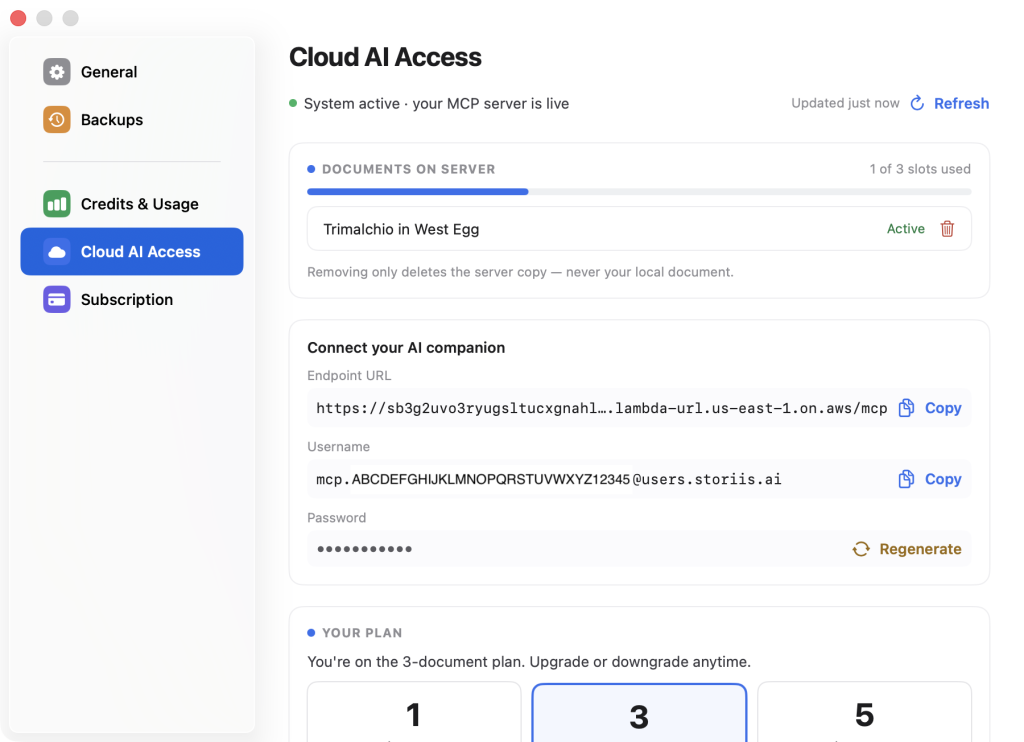
Once active, Storiis creates a private MCP server and issues an endpoint, username and password for it.
2. Add a Story
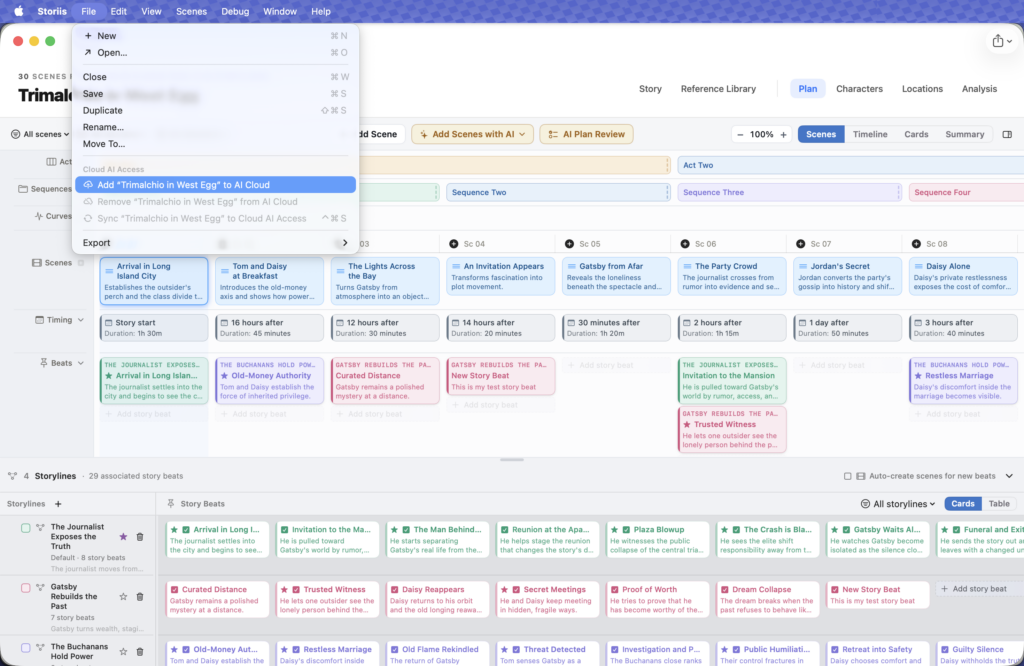
Open the story you want to share, then open the document’s Export menu and choose Add to Cloud AI Access.
Storiis saves the document and performs its first upload. A cloud control then appears in the toolbar for that story.
If every slot is in use, the Add command is disabled. Remove a story you no longer need or change the number of slots under Settings → Cloud AI Access.
3. Connect Your AI Tool
In Settings → Cloud AI Access, copy the:
- Endpoint URL
- Username
- Password
In your AI tool, add a custom MCP connector, enter the endpoint and use the Storiis username and password when asked to sign in.
One connector provides access to all active stories. If more than one is available, the AI can list them or you can name the story in your request.
Keeping a Story Up to Date
Cloud AI Access works from an uploaded copy of the story. Changes you make locally are not available to the outside AI until they are synced.
The toolbar cloud icon shows the current state:
- A checkmark indicates the story has been synced.
- An upload symbol indicates there are unsynced changes.
- A progress symbol indicates a sync is underway.
- A warning symbol indicates that the last sync failed or access needs attention.
Select the cloud control to sync immediately. Storiis saves in-memory edits before uploading them, so the cloud copy includes your latest work.
Suggestions from an Outside AI
The MCP connection itself is read-only. An AI tool can inspect your Plan and, when explicitly asked, file a proposed revision as a suggestion.
The AI Suggestions button in the story toolbar displays a badge when proposals are waiting. Open it to see new and resolved suggestions, inspect proposed values and go directly to the affected Plan item.
When a suggestion is supported and still matches the current Plan, Accept applies it as one undoable Storiis edit. A suggestion that cannot be safely applied—or has become stale because you changed the target after it was created—remains available for manual review. Make the change yourself, then choose Mark handled. Choose Dismiss when you do not want the proposal.
After accepting or manually incorporating suggestions, sync the document so the outside AI receives the aligned Plan during its next request.
Nothing in the local story is changed merely because an outside AI filed a suggestion—which is as it should be. Confidence is not the same thing as editorial authority.
For the complete prose-to-Plan workflow, see Keeping the Plan Aligned with AI Suggestions.
Managing Documents and Slots
The Cloud AI Access settings show how many slots are in use and which stories are currently deployed.
Removing a story permanently deletes its uploaded server copy and frees the slot. It does not delete or alter the local Storiis document. You can add the story again later and perform a fresh sync.
If you reduce your slot allowance, remove any extra active stories before the change takes effect.
Password Safety
Treat the MCP password like any other account credential. Anyone with the endpoint, username and password may be able to read the stories you have deployed.
If you believe the password was exposed, select Regenerate in Cloud AI Access settings. This immediately invalidates the previous password, so you will need to update every connected AI tool.
The newly generated password is shown once. Copy it somewhere secure before dismissing it.
Getting Better Results
An AI can only respect context that exists. Before asking it to draft or advise, fill in the parts of the Plan that matter:
- Use Story → Tone & Style for narrative voice, prose style, influences, maturity and standing directions.
- Add fixed truths to a world element’s Canonical Facts and hard limits to its Constraints.
- Connect characters, locations, story beats and exposition to scenes.
- Keep scene timing and the story-world Timeline current when chronology matters.
The richer and more deliberate the plan, the less likely your AI companion is to cheerfully invent a second moon, resurrect the wrong uncle or move the climactic duel into a bakery.
If you plan to use an outside AI system to write substantial prose, begin with Preparing a Story for AI Writing. Then follow Writing a Full Book with AI for scene-level prompting and the complete manuscript workflow.
Privacy and Control
Only stories you add to Cloud AI Access are uploaded. Removing one deletes its server copy while leaving the local document untouched.
Cloud AI Access gives external AI tools read-only retrieval access. Storiis AI features are separate: when you run one inside the app, the relevant story context is sent to the AI provider to generate the requested result. See Data and Privacy for more information.
Troubleshooting
The Story Is Missing in My AI Tool
Confirm that the story appears in Settings → Cloud AI Access, then open it and select the cloud toolbar control to sync again.
The AI Is Using Old Information
Look for the unsynced-changes icon in the story toolbar and run a manual sync.
I Cannot Add Another Story
All slots are in use. Remove an inactive story or change your Cloud AI Access slot allowance.
My Connector Stopped Authenticating
If the MCP password was regenerated, update the connector with the new one. You can also copy the endpoint and username again from Settings to rule out a typing error.
Sync Failed
Check your internet connection and try again. If the toolbar reports that a subscription is required, open Cloud AI Access settings and refresh the subscription state.
Explore this feature