Storiis Support
Locations
Updated
Locations keeps the places in your story visible, consistent and connected to the scenes that use them. The gallery can hold anything from a country or starship to a hospital corridor, kitchen table or suspiciously important broom cupboard.
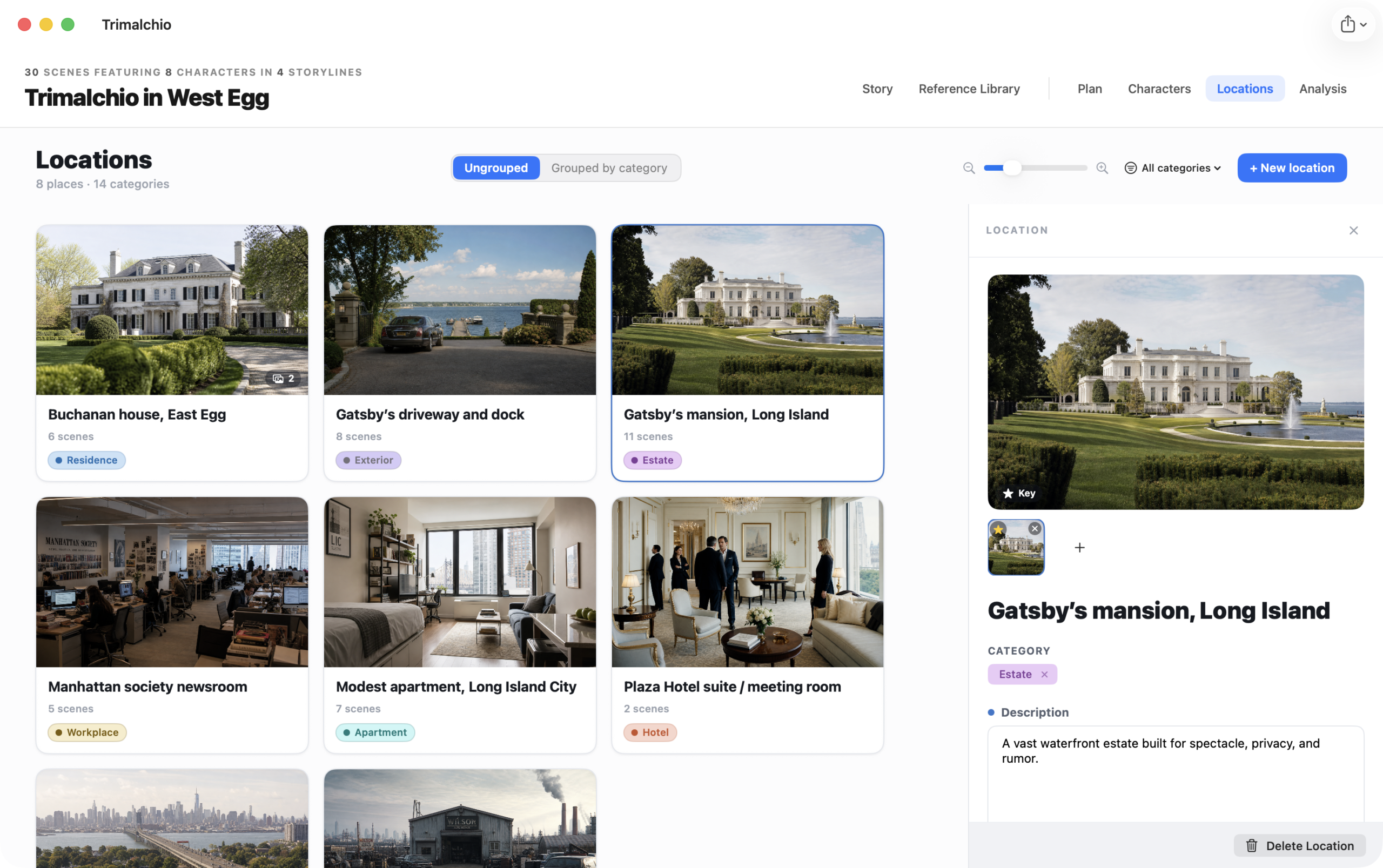
The Location Gallery
Each location appears as a visual card. Use the controls above the gallery to:
- Search locations
- Filter or group by category
- Change the card size
- Add a location
Categories are shared with Reference Library timeline events and index cards, which makes it easier to keep related material organized across the app.
Creating a Location
A location can begin with a name and description. Add categories and images when they help you distinguish it or write it consistently.
Locations are deliberately flexible rather than forced into a parent-and-child hierarchy. Use names and categories to express the structure that matters to your story.
Images
A location can contain several images, with one selected as its key image for the gallery. Add images by:
- Uploading a file
- Providing an image address
- Generating an image with AI
Supporting images can capture different rooms, angles, seasons or states of the same place.
Location Details
Select a location to open its inspector. Add or revise the description, categories and image collection there.
Describe details that affect scenes: scale, atmosphere, access, hazards, social meaning and any physical constraints. “Beautiful old house” is a start; “every private conversation can be heard through the heating vents” is a Plan.
Used in Scenes
The inspector lists scenes connected to the location. This list is drawn from the Plan and is not edited independently.
Select a listed scene to open it in the Scenes view. To add or remove the location from a scene, edit that scene’s Locations section.
This connection is useful for continuity. If a location changes or is destroyed, the scene list shows where earlier and later descriptions may need attention.
Creating Locations from Scenes
When planning reveals a new setting, create it directly from the Scene Wizard. This connects it to the scene immediately; you can return to Locations later for fuller details and images.
Generating a Location Image with AI
Choose the AI image option, describe the setting and review the generated result before adding it to the location. Generated images use credits, and Storiis provides an estimate before the request.
Prompts work best when they include the visual facts that matter: environment, era, architecture, lighting, weather, scale and mood. Keep definitive nonvisual facts in the description or Reference Library rather than expecting an image to remember them.