Storiis Support
Export Options
Updated
At some point, your Plan needs to leave Storiis. Perhaps you are ready to write. Perhaps an editor needs a clean overview. Perhaps you want to feed a carefully structured story bible to an AI tool instead of pasting 147 disconnected notes into a chat window and hoping for the best.
Open the Export menu in the document toolbar or choose File → Export to see the main options.
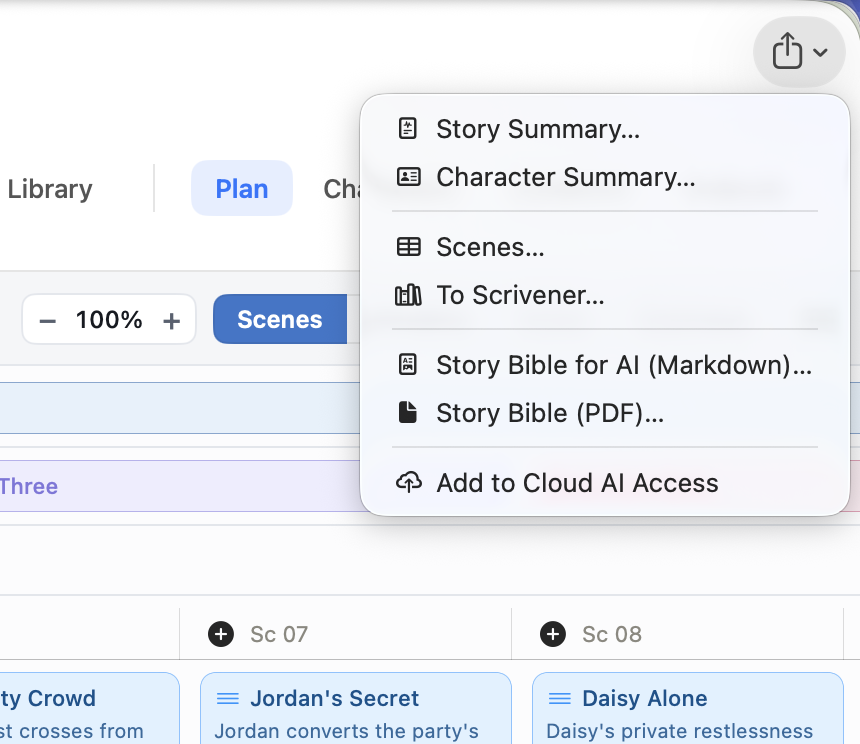
Story Summary
Story Summary creates a plain-text overview of the story and its structure. It includes story metadata and the material you have developed in the Story section, followed by your storylines and beats.
Use it when you need a compact, readable reference rather than the full contents of the project.
Character Summary
Character Summary exports a plain-text reference for the cast, including each character’s profile information and journey where available.
It is useful for sharing the cast with a collaborator or keeping character information beside your writing environment.
Scenes
Scenes opens a configurable export window. Choose a preset, select and reorder the fields you want, preview the result and then choose an output format.
The built-in presets are:
- Plot Grid includes a broad set of planning fields, with separate columns for storylines and characters.
- Flat List keeps relationships together in single columns, producing one conventional row per scene.
- Minimal includes only scene order, scene name, act, sequence or chapter, and timing.
You can customize any preset by enabling, disabling or reordering its fields. Storiis remembers your most recent configuration as the default for later exports.
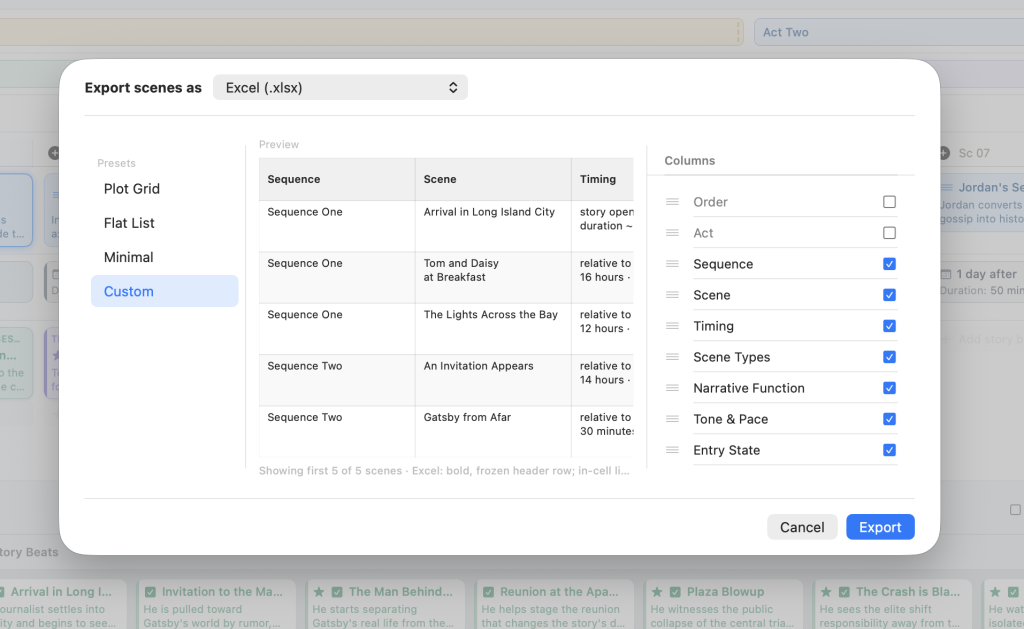
Excel
Creates an .xlsx workbook with a bold, frozen header row. Line breaks inside fields are preserved.
Choose Excel when you want to sort, filter, annotate or reshape the Plan in a spreadsheet.
Comma-Separated Values
Creates a UTF-8 .csv file. CSV is widely supported and works well for moving the scene table into another database or planning tool, although it does not retain workbook styling.
Word
Creates a .docx document with one section per scene. The scene title becomes a heading and the selected fields appear as labelled lines beneath it.
Choose Word when you want a readable scene-by-scene planning document rather than a grid.
Google Sheets
Creates or updates a spreadsheet in your Google Drive with a frozen header row. The first time you use it, Google will ask you to sign in. Storiis can only access spreadsheets it creates.
After the first export, Storiis remembers the linked sheet for that story so later exports can update it. If the linked sheet is no longer available, Storiis can create a new one.
Google Docs
Creates a new Google Doc with one section per scene, similar to the Word export. The first use requires Google sign-in, and Storiis can only access documents it creates.
Scrivener
To Scrivener creates a complete .scriv project. Before exporting, choose whether scenes should be organized by act or by sequence—or chapter, if you changed the grouping term in Storiis.
Scenes are placed inside Scrivener’s Draft folder. Characters and locations are exported into their own top-level folders, giving you a writing project with its core reference material already in place.
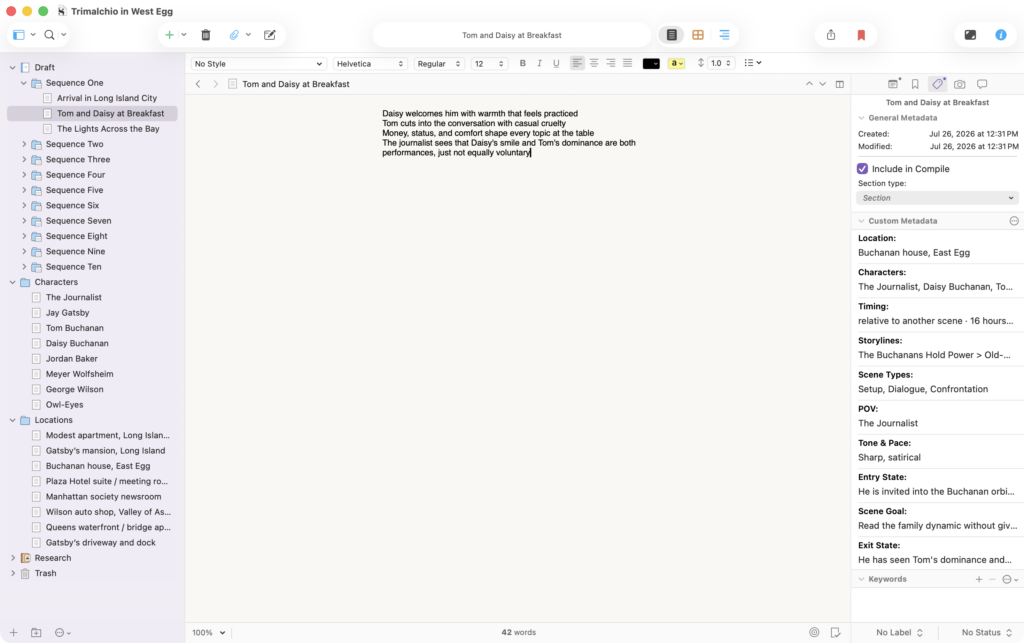
Storiis creates a new Scrivener project; it does not overwrite or continuously synchronize an existing one.
Story Bible for AI (Markdown)
The Markdown Story Bible exports a structured snapshot of the material you have already built: story information, outline and writing guidance, storylines, scenes, characters, locations, worldbuilding and other connected context.
Markdown is particularly useful when working with an AI system because headings and plain-text structure are easy for the system to interpret. It is still only a snapshot: changes made later in Storiis will not appear in the exported file unless you export it again.
See Preparing a Story for AI Writing for guidance on completing the Plan before using a Story Bible to generate prose.
Story Bible (PDF)
The PDF Story Bible contains the same core material as the Markdown version, formatted as a paginated document for reading, printing or sharing.
Choose PDF when the recipient is human. Choose Markdown when the recipient is silicon—or a human who has unusually strong opinions about plain text.
Exports from Plan → Summary
The Summary view has its own Export menu. It exports whichever version you are currently reading—Scene Flow or AI Summary—as plain text, PDF, Word or Google Docs.
Before You Export
- Check that the story has a useful title; it becomes part of many default filenames.
- Review whether the scene filters are active. Summary exports use the currently visible scene set.
- Preview configurable scene exports before saving.
- Treat every export as a snapshot, not a live link, except for a linked Google Sheet that Storiis updates through its export workflow.