Dot all the i’s and cross all the t’s
Helping you think it through.
Pantsing is fun until you realize that subplot you wrote throughout all of act one is completely forgotten by act three. Storiis Scenes makes sure that never happens again.
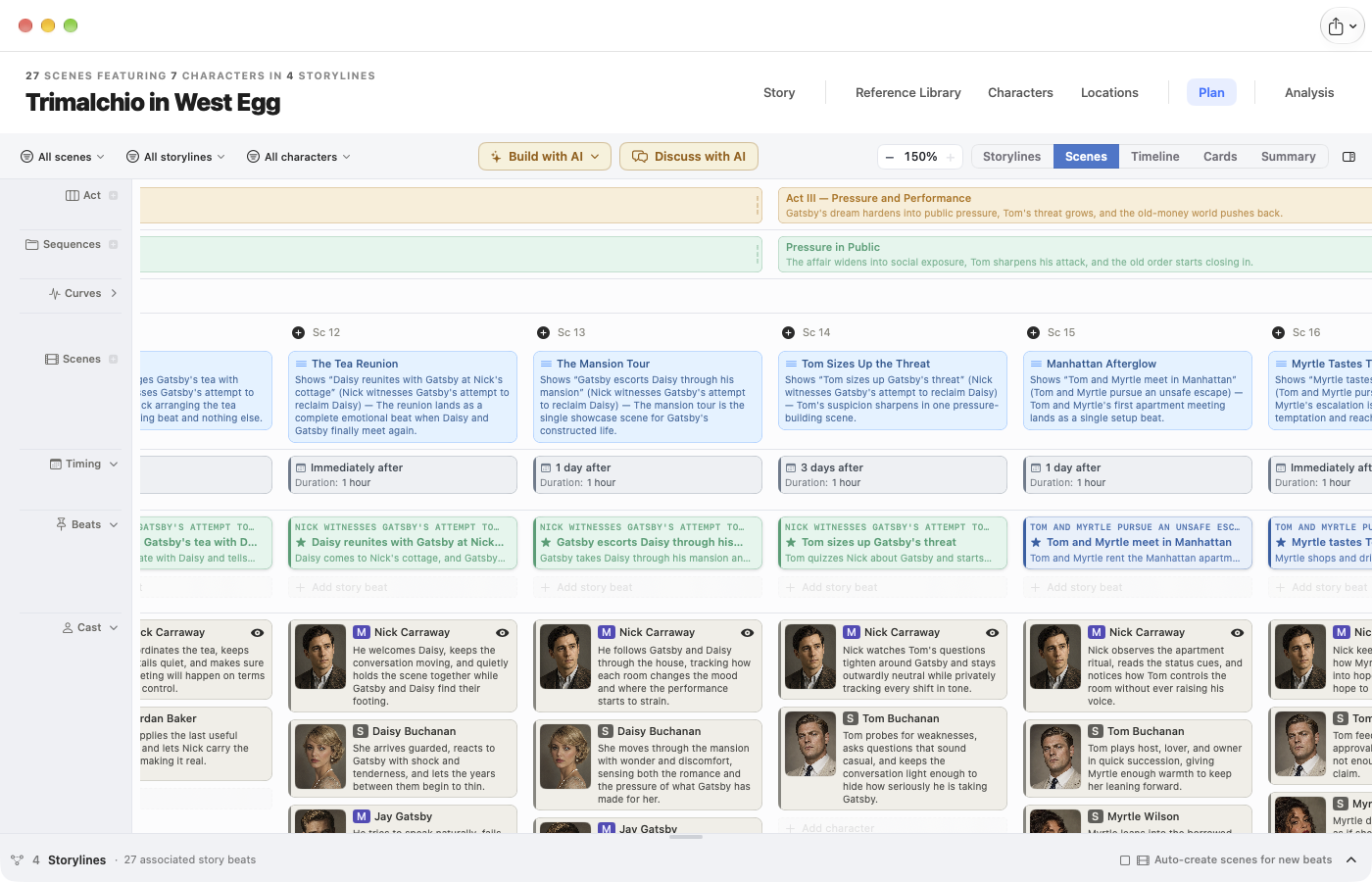
Every Detail Matters
Your scenes deserve more than bullet points.
Your scenes don’t begin and end with a character simply stating, “and then I did the thing”. Design your scenes with every detail you’ll need when writing your story: narrative function, tone & pace, entry & exit points and the events that transpire between, complications, and more.
Create scenes with the Scene Wizard, automatically from your Storyline beats, with AI assistance, or directly on the canvas.
Everything’s optional — how deep you go is entirely up to you.
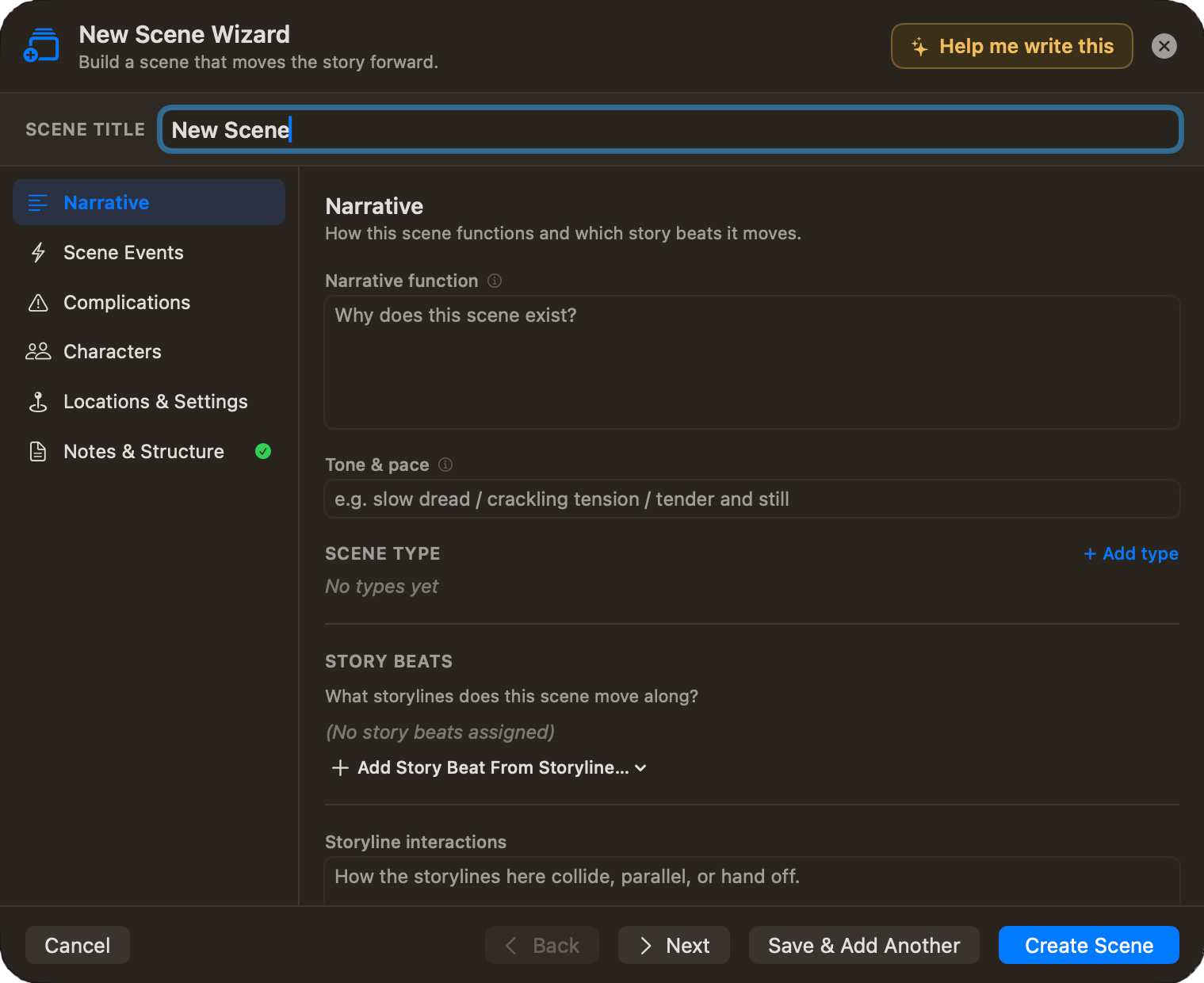
Storiis’ New Scene Wizard
All the world’s a stage
Set the mise-en-scène.
The scene is just the blank canvas upon which your tale is told. Fill it with the characters, beats, locations and more that tell the complete story.
 Nick CarrawayPOV
 Daisy Buchanan
 Tom Buchanan
Characters.
Assign the characters which will be a part of your scene, detailing for each their actions, the motivations driving those actions, their personality traits, and the stage of their character arc they’re currently in.
- Nick — point of view. Watches Tom dominate the table and listens for cracks in the performance. Observant · Unsettled · Polite
- Daisy — keeps the evening floating even as the strain shows underneath. Charming · Elegant · Conflicted
- Tom — fills the room before anyone else can speak honestly. Assertive · Confident · Entitled
Beats.
Set which storyline beats will be addressed in the scene, how they should be handled, and what progress a beat makes towards resolving its storyline’s dramatic question.
- Tom dismisses consequence at dinner — Primary
- Storyline — Nick witnesses Gatsby’s attempt to reclaim Daisy · Stage — Theme Stated
- Driver — Nick is now close enough to see how Tom treats other people’s pain as a joke.
Location.
The locations where your scene unfolds, including a note that can describe the tone, mood and setting of the location in this specific scene.
- Buchanan house — a polished East Egg mansion with wide windows, white stone, and money that seems inherited by the walls themselves. Calm from outside, tense inside.
Timing.
Set when your scene happens, independent of narrative order, either relative to the start of your story or to another scene. Optional duration allows you to set how long the scene lasts. Review your narrative’s chronology in the Plan’s Timing view.
- 1 day after Nick Takes the Cottage
- Duration — about an hour
Exposition.
The information your scene needs to convey to the reader. Create and reference world building documents, index cards and other exposition items from your Reference Library, or create quick facts directly on the Scene view’s canvas.
- Tom Buchanan’s influence — Implicit. The reader feels the table quickly deferring to him.
People, places and reveals
Set the stage.
Cast the scene and choose its point of view. Pick the location, or make one on the spot. Decide what the reader learns here: exposition comes straight from the facts in your Reference Library, so a reveal is a decision about when, not an accident of drafting.
Timing, duration, acts and sequences.
Say when a scene happens relative to another and how much story-world time it takes. Group scenes into acts and sequences — or chapters, if that’s how you think. The structure follows you into the Timeline, the Cards, the Summary and your exports.
See it, tint it, filter it
Style your plan for its grand debut.
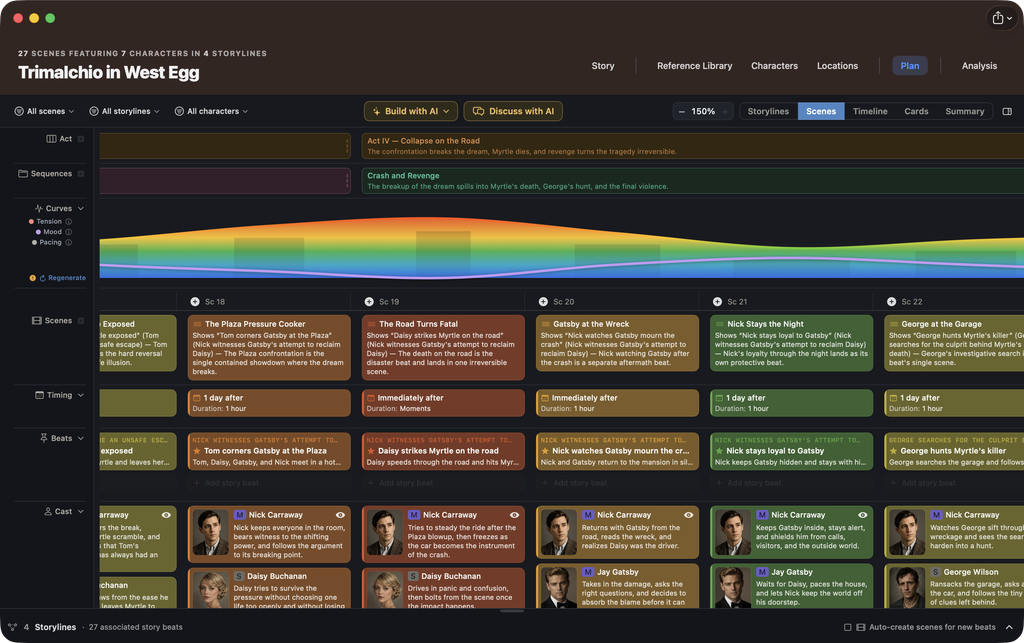
Tint every scene column by its storyline, act, sequence, scene color or AI-scored curves which tracks your plan’s tension, mood and pacing. Filter by scene, storyline or character to follow one thread through a crowded Plan.
Learn the details
ScenesPlan overviewStorylines & beatsBuilding the Plan with AI
From outline to draft
Know how every scene earns its place.
Give each scene a job, a cast, a stage and a reveal — and read the whole story before you write a word of it.